HP printer help
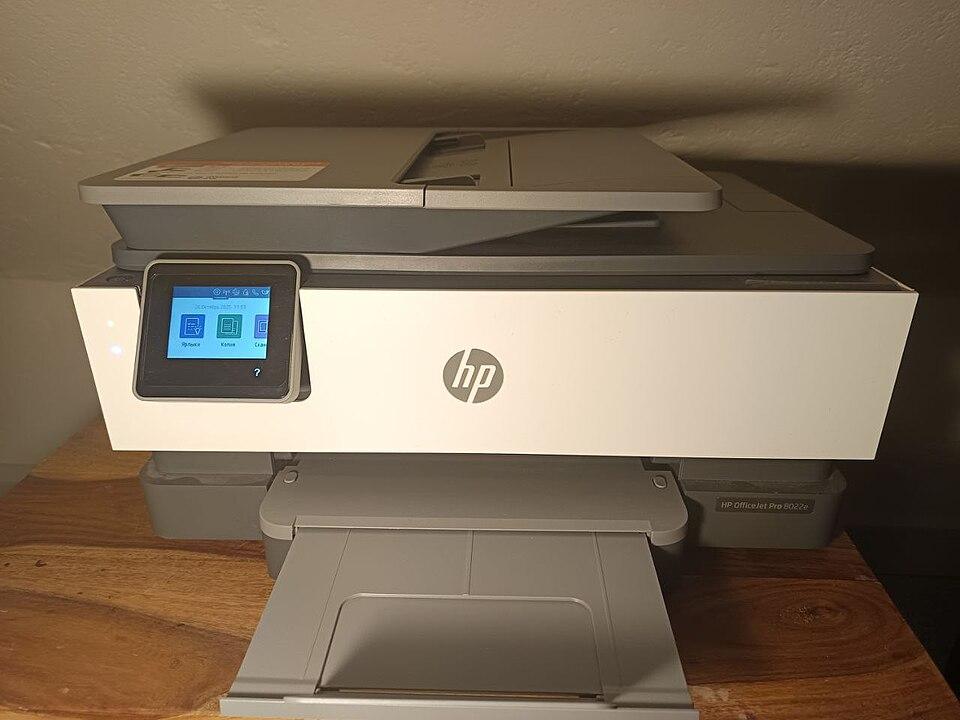
HP makes some of the most widely used home and office printers — the OfficeJet, ENVY, DeskJet, and LaserJet lines. Most HP problems fall into a few buckets: the printer showing offline after a Windows update, the HP Smart app not finding the printer, Wi-Fi dropping on DeskJet and ENVY models, and cartridge or carriage errors on the OfficeJet range. HP printers are also strict about cartridges, so a single empty or non-genuine cartridge can block printing entirely.
For most HP setup and scanning tasks, the HP Smart app is the most reliable tool — it handles driver installation, Wi-Fi setup, and scanning in one place. The guides below cover the issues HP owners hit most often.
HP troubleshooting guides
Printer offline
Get a printer that says "offline" talking to your computer again.
Open guideInstall drivers
Find and install the right driver so your computer can actually use the printer.
Open guideWi-Fi drops
Stop a printer that connects fine, then drops off the network an hour later.
Open guideNot printing
Connected and ready, but nothing comes out? Work through the causes in order.
Open guideNew printer setup
Unbox, connect, and print your first page — without the guesswork.
Open guideScanner issues
Printer prints fine but scanning fails? Get the scanner responding again.
Open guideCommon HP error codes
HP printer FAQ
Why does my HP printer keep going offline?
On HP printers this is usually a changing IP address or the "Use Printer Offline" setting switching itself on in Windows. Set a DHCP reservation for the printer and uncheck the offline setting in the print queue. Our offline guide walks through both.
Do I need the HP Smart app?
It is the easiest way to set up, scan, and manage an HP printer, and it installs the right driver for you. You can print without it using the built-in Windows or AirPrint driver, but for setup, scanning, and ink levels, HP Smart is the recommended tool.
My HP printer won’t print even though it has ink. Why?
HP printers can block printing if any one cartridge is empty or reads as non-genuine, even a colour you are not using. Check every cartridge level, reseat each one, and replace any flagged cartridge. If it still won’t print, clear the queue and check the print head.